


Updated and technically reviewed: August 13, 2026. This guide was rewritten against the current converter interface and current Microsoft, Apple, and Google documentation. It distinguishes direct PDF-to-DOCX conversion from text recognition and does not promise exact layout preservation.
You can convert a compatible PDF to Word on either Windows or Mac in a browser. If you already have the desktop version of Microsoft Word, you can also open a PDF in Word and let it create an editable copy. On a Mac, Preview can make text selectable in some image-based PDFs, but that feature leaves the file as a PDF; it is not a direct PDF-to-DOCX export.
Current converter limits: one text-based PDF per conversion, up to 25 MB and 200 pages, with DOCX as the only output format. The service does not support OCR, password-protected PDFs, or batch conversion. Images, tables, columns, forms, and complex page layouts are not reliably preserved.
Choose the Right PDF-to-Word Method
| Situation | Best first method | What to expect |
|---|---|---|
| Text-based PDF on Windows or Mac | Use the browser converter | A text-focused DOCX with no software installation; review formatting and reading order |
| Mostly text and desktop Word is installed | Open the PDF in Microsoft Word | Word creates an editable copy and attempts to reproduce the layout |
| Scanned PDF on a recent Mac | Try Preview’s Embed Text, then use a separate DOCX workflow | Preview may add selectable text to the PDF, but it does not create a DOCX |
| Small scan and cloud processing is acceptable | Open the PDF with Google Docs | Google may recognise text; tables, columns, lists, and notes may not transfer |
| Brochure, form, invoice, or table-heavy PDF | Keep the PDF as the visual reference | Expect substantial manual reconstruction whichever conversion method you test |
If the document contains confidential, regulated, or business-sensitive information, compare the available workflows before uploading it anywhere. Start with the site’s online PDF converter safety checklist.
How to Convert PDF to Word on Mac or Windows in a Browser
The website workflow is the same on Windows and macOS. The browser and operating system only change the file picker and the location of your downloaded DOCX.
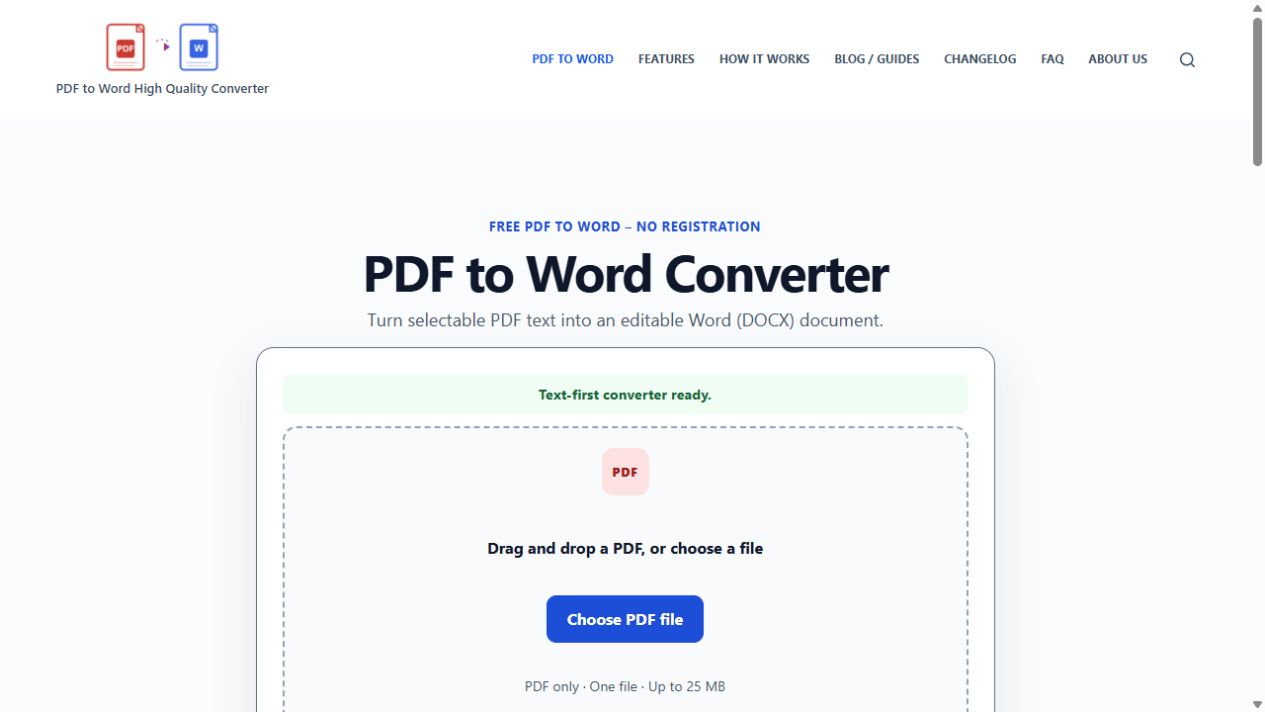
- Check that the PDF contains selectable text. Open it and try to highlight one sentence. If the entire page behaves like a picture, the file needs OCR and is not supported by this converter.
- Check the limits. Use one PDF no larger than 25 MB or 200 pages. The file must not be password protected.
- Open the PDF to Word converter in a current browser.
- Select Select PDF File, or drag the PDF into the upload area on a desktop computer.
- Confirm that you selected the intended file, then select Convert to Word.
- Keep the tab open while the file is uploaded, queued, and processed. Conversion time varies with the document, connection, and current service load.
- Select Download Word File when the DOCX is ready.
- Open the DOCX and compare it with the original PDF before editing, sharing, or deleting the source.
On Windows, the file usually appears in the browser’s Downloads list and your Downloads folder. On Mac, check the browser’s download button and the Downloads folder in Finder. If your browser is configured to ask where to save each file, use the folder you selected.
How to Convert a PDF with Microsoft Word
The desktop version of Word can open a PDF and convert a copy into an editable Word document. Microsoft’s current guidance covers Word for Microsoft 365, Word 2024, Word 2021, Word 2019, and Word 2016. Microsoft says the process works best for PDFs that are mostly text and warns that the Word document may not look exactly like the PDF.
- Keep the original PDF unchanged as your reference copy.
- Open the desktop Word application on Windows or Mac.
- Choose File > Open, browse to the PDF, and open it.
- When Word explains that it will convert the PDF, continue only if you want an editable copy.
- Review the converted document against the PDF, especially tables, footnotes, page breaks, graphics, and multi-column sections.
- Choose File > Save As and save the edited copy as DOCX.
Word does not offer a universal “keep layout” switch that guarantees a faithful conversion. It infers Word objects from the positions stored in the PDF. Microsoft specifically identifies tables with cell spacing, page borders, some footnotes and endnotes, bookmarks, comments, and certain visual effects as problematic. A graphics-heavy page may appear as one image, leaving its text uneditable. See Microsoft’s current guide to opening PDFs in Word.
Can Preview Convert PDF to Word on a Mac?
Preview is not a direct PDF-to-Word converter. It is useful for opening, annotating, combining, signing, and exporting PDFs and images, but Apple’s current Embed Text feature adds recognised text to an image-based PDF; it does not create a DOCX.
If a scanned PDF has no selectable text, a recent version of Preview may offer this preparation step:
- Make a copy of the scan so the original remains unchanged.
- Open the copy in Preview.
- Choose File > Export.
- Select Embed Text if the option appears, then save the new PDF.
- Open the saved PDF and check whether you can select the text in multiple places.
- If the new PDF is unprotected and within 25 MB and 200 pages, you can test it in the browser converter. Alternatively, open it in desktop Word.
- Proofread names, numbers, punctuation, and reading order against the scan.
Apple says Embed Text appears only when Preview has not already recognised text in the document. The feature can make text selectable, but it does not reconstruct Word tables, styles, columns, or page layout. Read Apple’s current instructions for embedding text in a PDF.
We have not validated every PDF produced by Preview against this converter. Treat the Preview-to-browser sequence as a workflow to test on a copy, not as a guarantee that every scan will convert or that recognised text will be error-free.
Using Google Docs for a Small Scanned PDF
Google Drive provides another OCR route when a cloud upload is acceptable. Google recommends a file size of 2 MB or smaller for best results and says lists, tables, columns, footnotes, and endnotes are unlikely to be detected. This method therefore suits text recovery better than layout preservation.
- Upload an authorised copy of the PDF to Google Drive.
- Right-click the file and choose Open with > Google Docs.
- Review the recognised text against the original PDF.
- In Google Docs, choose File > Download and select Microsoft Word (.docx).
- Open the DOCX and correct reading order, tables, columns, and formatting manually.
Google documents both the PDF-to-text preparation and formatting limits and the option to download a Google document as DOCX. This is an online Google workflow, not an offline conversion method.
What Quality Should You Expect?
A PDF is designed to keep a page visually stable. A Word document needs editable structures such as paragraphs, headings, lists, tables, and sections. Microsoft explains that a PDF may store the positions of text and graphics without storing all the relationships needed to recreate those Word objects. Conversion software must infer the missing structure.
Our 24-file PDF-to-Word quality test found that the current service often retained digital text while failing to recreate dependable document structure. In that recorded run, 22 files produced a downloadable DOCX; visual review rated 20 of those outputs as needing major repair. The two image-only scans did not produce a DOCX because the service has no OCR. Those results describe one controlled test run, not every PDF or a permanent service-level guarantee.
| PDF content | Current browser-converter expectation | Review action |
|---|---|---|
| Selectable paragraph text | Often extracted as editable text | Check paragraph breaks, headings, punctuation, and order |
| Image-only scan | Not supported; no OCR | Use an authorised OCR workflow first |
| Tables | Not reliably rebuilt as Word table objects | Recreate cells and verify every value |
| Images and charts | Not preserved reliably | Insert authorised source images manually |
| Columns and sidebars | May be flattened or reordered | Restore reading order before styling |
| Forms and complex design | Visual relationships may be lost | Keep the PDF as the authoritative visual reference |
For a repair workflow, read what happens to tables and images during PDF-to-Word conversion.
Troubleshooting on Windows and Mac
| Problem | Likely cause | What to do |
|---|---|---|
| The site rejects the upload | The file may exceed 25 MB or 200 pages, use the wrong file type, or be password protected | Check the original PDF and use one compatible file |
| The DOCX is empty or has almost no text | The PDF is probably an image-only scan | Try selecting text in the PDF; use an OCR workflow if none is selectable |
| Text appears in the wrong order | The PDF contains columns, sidebars, captions, or positioned text | Compare page by page and rebuild the reading order |
| Tables or images are missing | The current service does not reliably reconstruct them | Use the source PDF to recreate the missing content manually |
| Word’s version looks different from the PDF | Word inferred editable objects from a fixed-layout file | Keep the PDF as reference and correct the DOCX structure before styling |
| Preview does not show Embed Text | Preview may already recognise text, or the option may not be available in that document or system version | Test whether text is selectable; consult the Apple guide for your macOS version |
| Google Docs loses formatting | Google warns that several structural elements are unlikely to be detected | Use it for text recovery, then rebuild layout in the DOCX |
| The download is hard to find | The browser saved it to its configured location | Open the browser’s Downloads list, then check the operating system’s Downloads folder |
Review the DOCX Before You Use It
- Compare every page with the original PDF.
- Verify names, numbers, dates, totals, units, and punctuation.
- Check that paragraphs, headings, lists, and columns follow the intended reading order.
- Rebuild tables as real Word tables rather than aligning values with spaces.
- Restore authorised images, captions, links, footnotes, headers, and page breaks where needed.
- Do not delete the original PDF until the DOCX has passed your review.
Related PDF-to-Word Guides
- See the 24-file PDF-to-Word quality benchmark
- Repair tables, images, and columns after conversion
- Convert PDF to Word on iPhone and Android
- Review the online converter safety checklist
- Browse all PDF-to-Word guides
Official Sources Reviewed
- Microsoft Support: Opening PDFs in Word
- Apple Support: Embed text in a PDF
- Apple Support: Preview User Guide for Mac
- Google Drive Help: Convert PDF and photo files to text
- Google Drive Help: Download a file in another format
Sources and product behavior reviewed August 13, 2026; Google links rechecked August 17, 2026. Menu names can vary by operating-system, application, account, language, and browser version. This article does not claim hands-on coverage of every Windows build, Mac model, browser, Word release, or PDF type.
Ready to test a compatible file? Use one non-sensitive, text-based PDF in the PDF to Word converter, then compare the downloaded DOCX with the source.